Apollo is a popular tool used by sales professionals across the world. It's widely known for it's huge database and various features that help streamline and automate outbound sales.
Apollo is a sales automation tool that functions as an all-in-one lead generation, contact database management, and email outreach platform.
Apollo provides four core features for any salesperson to build pipeline:
Contact & Account Search
Sales Enablement
Workflows
Deal Management
5 things to know when building a search in Apollo
Understand your Ideal Customer Profile (ICP)
Use search filters
Create and save a search
How to do an account search?
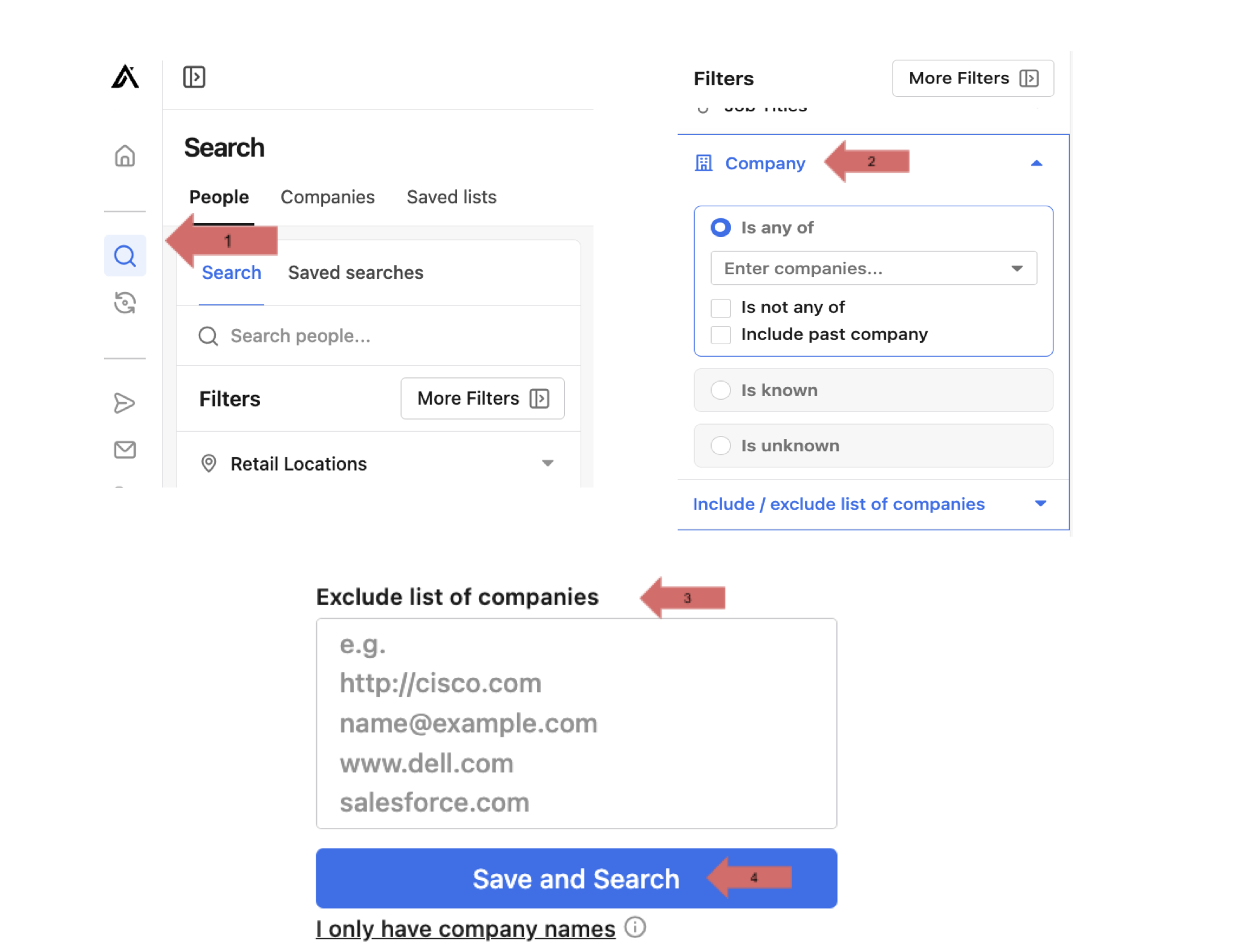
How to exclude companies from your search?
1. Understand your Ideal Customer Profile (ICP)
Your ICP is an idea of your ideal customer you’d love to offer your product or service to.
If you don’t know what your ICP looks like, there’s some work that goes into figuring it out.
First, you should look for trends among your current customers. If you’re starting out, you should at least use measurable data such as company size, industry, number of employees, etc.
This will allow you to have a more clear idea of the kinds of people you should reach out to once you build your lead lists (Don’t worry, we’ll get around to that).
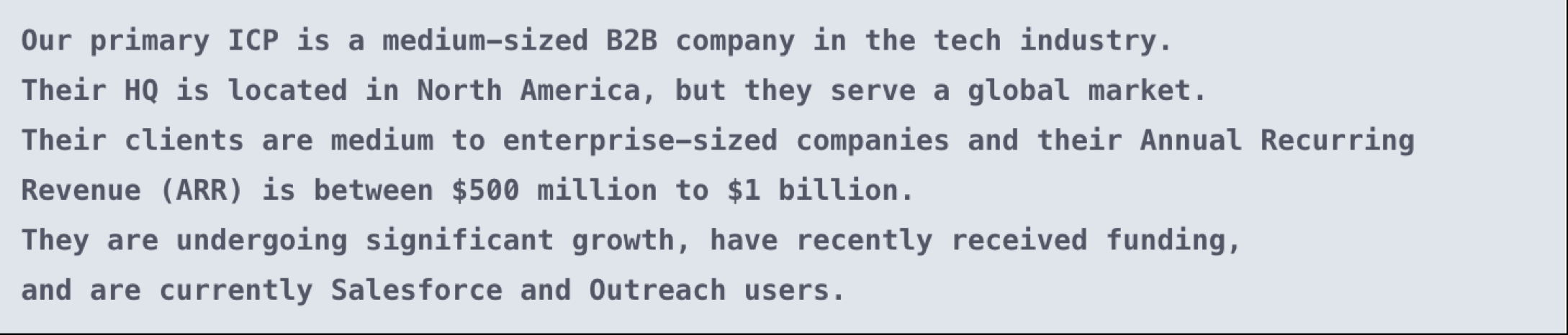
According to Apollo, your ICP might look something like this:
Now that you’ve figured out your ICP, let’s dive into some of the practical prospecting tips.
2. Use search filters
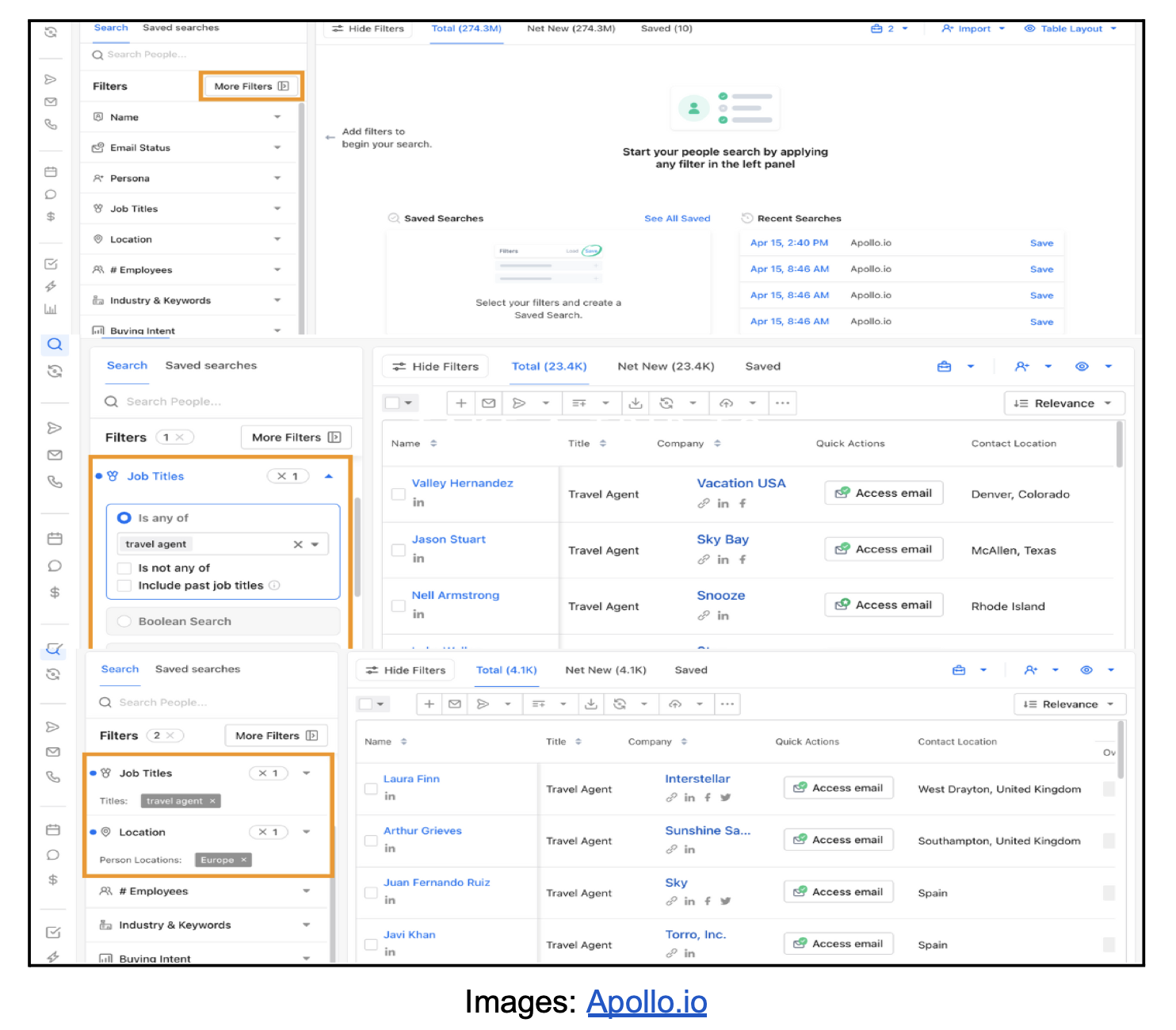
Apollo has more than 65 filters for you to work with when you’re building your search. Not all of them are available on the free plan, so here are the basic filters you’ll have access to without spending any dollars:
Title
Industry
# of Employees
Keywords
Location
Personas
Filters like these allow you to narrow down your search and put together a list of people who match your ICP.
3. Create and save a search
When applying filters within Apollo, do not use any filters from a “Paid Plan”.
Your search URL must be from the “Total” and not “Net New” or “Saved”.
Your search URL must not have any lists associated with your search. Lists are saved to your account and we are running the searches using our account.
4. How to do an account search
An account search is for those who know what they want – kind of like the people who check the menu before going to a new restaurant.
You have the company names or URLs and want to find the people who work there.
Here’s what to do:
Take the list of URLs from your Accounts.
Paste your URLs in the dropdown.
Click “Save and Search”.
Apply your filters and copy the Apollo.io search URL.
TIP: Paste your Apollo.io Search URL into the Leaedbird App form and we’ll scrape it in 5
minutes.
5. How to exclude companies from your search?
There might be some companies you don’t want in your search. Sometimes that includes direct competitors who offer your product or service – they don’t fit your ICP.
Other times, they are your current clients and you don’t want to run outreach to them.
Then you get companies you might not want to work with for ethical or geographical reasons.
The nice thing about Apollo.io is that it’s in your control.
Here’s a quick breakdown:
Click on search and then the “Company” filter.
Click on the “include/exclude list of companies” dropdown.
Insert the domains for all the companies you want to exclude.
a. TIP: Apollo.io allows you to use company names only but that data needs to be enriched. Domains are probably more accurate.
Click “Save and search”.
Prospecting in Apollo has many features and it can be easy to get overwhelmed by everything they’ve got to offer. One of the standout features is account-based prospecting.
Consider related job titles.
Don’t overlook Boolean search
Use location filters carefully
Use the # employees filter
Don’t skip keywords
Create personas
Check the last pages of your search
1. Consider related job titles
Apollo has hundreds of job titles for you to choose from, making it easy to narrow down your search and figure out who you’d like to reach out to.
For example, you might want to connect with top-level people in an organization so you’ll search for Founders, CEOs and other C-suite titles.
It’s really important to consider all the related job titles so that your search isn’t too small, but also watch out for simply throwing a bunch of job titles together.
You want your search to represent the audience you want to connect with.
That way, you can tailor your cold email messaging or even call scripts because you’ll have a good idea of their pain points and how your product or service solves their problems.
For example, if you’re looking for client-facing professionals you might look at targeting account managers and account executives. You should also include customer success managers because many organizations consider these titles interchangeable.
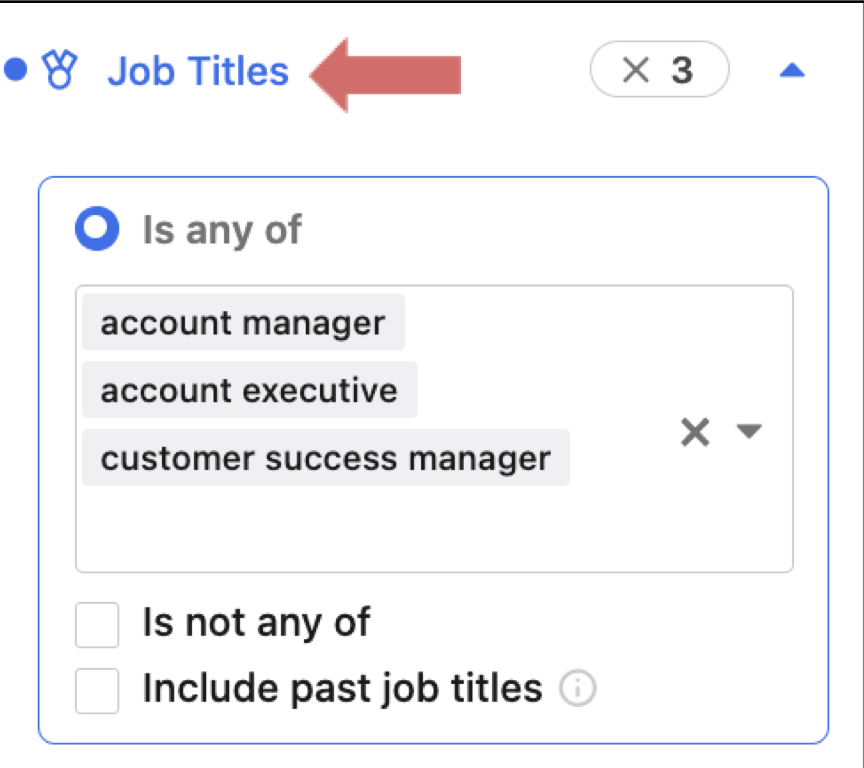
However, you might leave out any customer support or service reps because those are entirely different roles.
2. Don’t overlook Boolean search
What is Boolean searching?
Boolean searching isn’t specific to Apollo, but it’s very well-known for searching various databases, including those at a library! They help connect terms or keywords in your search.
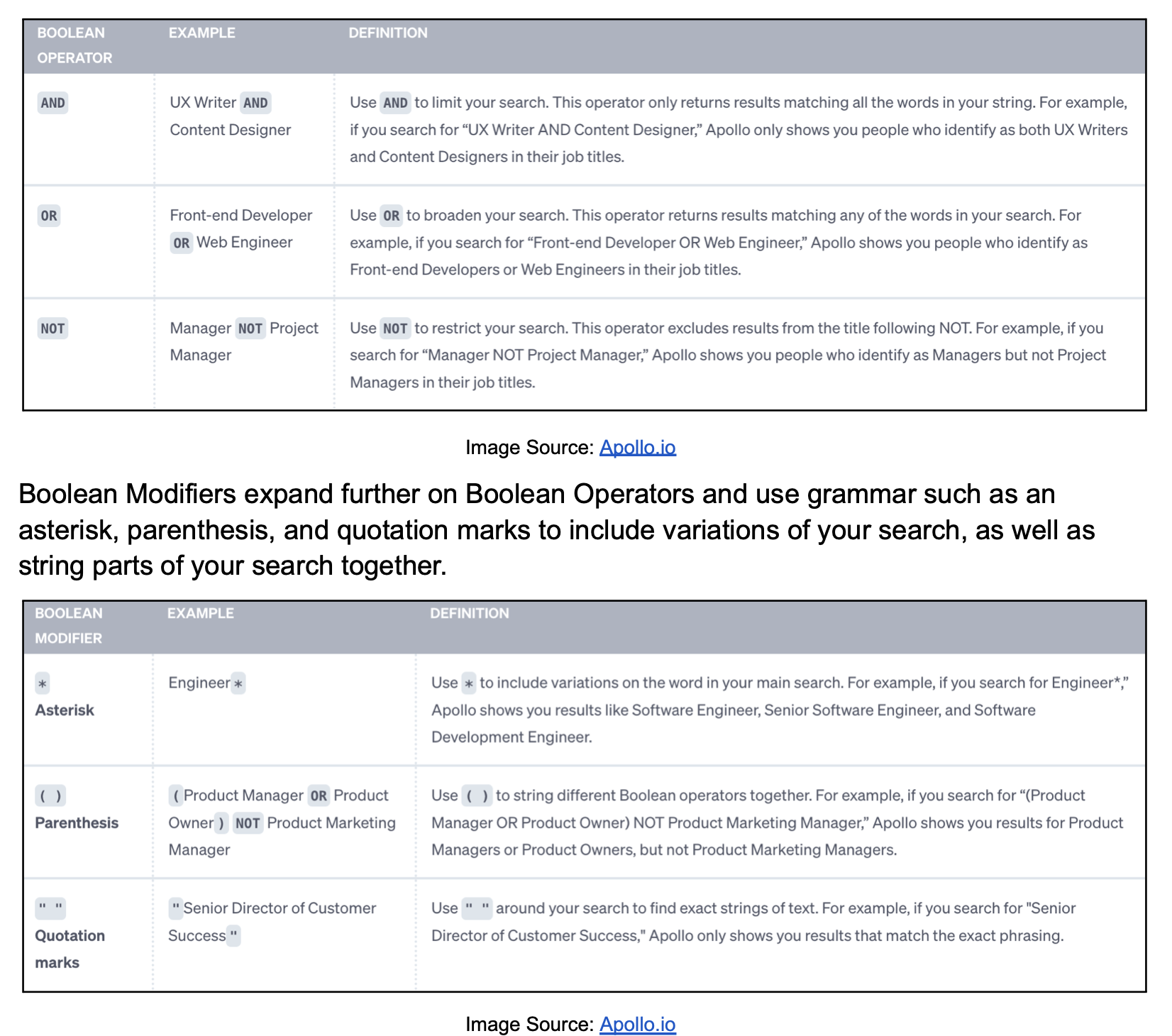
Apollo.io has both Boolean Operators and Boolean Modifiers.
Boolean Operators allow you to limit or expand your search for more exact results. Apollo's Boolean Operators include AND, OR, and NOT.
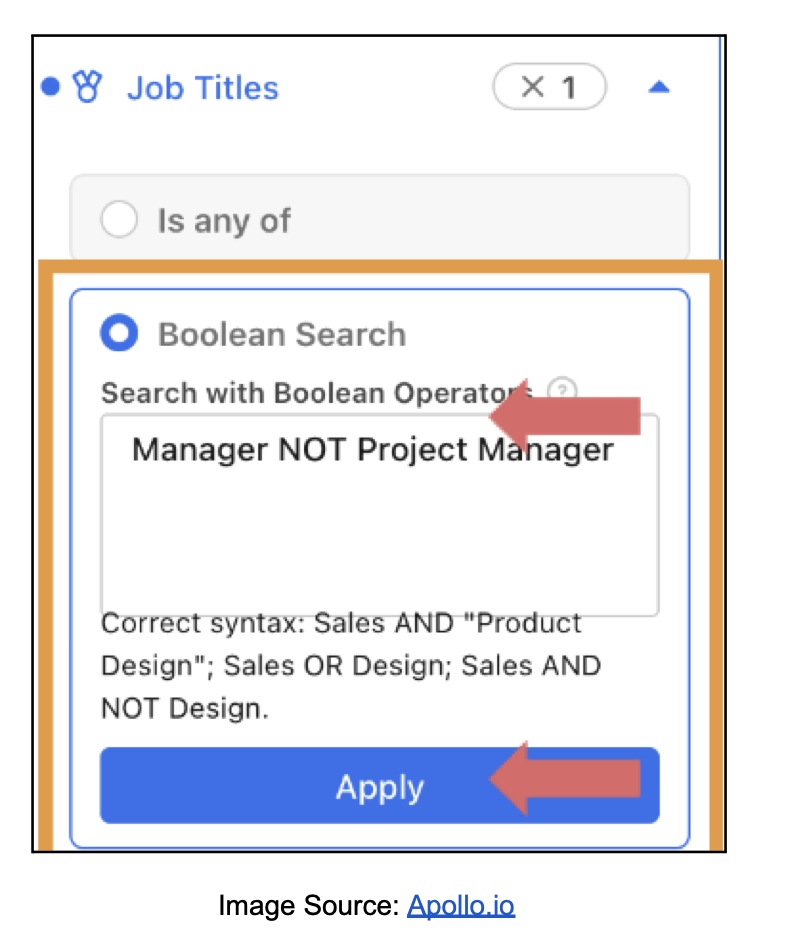
So, how do you use Apollo Boolean search?
Click search and select people.
Expand the Job title filter and then click Boolean search
Enter your search string and click Apply.
3. Use location filters carefully
Like job titles, think about your locations as you’re creating a search. You might want to reach out to those customer success managers based in the UK, so you’d have to include “United Kingdom” and “UK” when selecting regions.
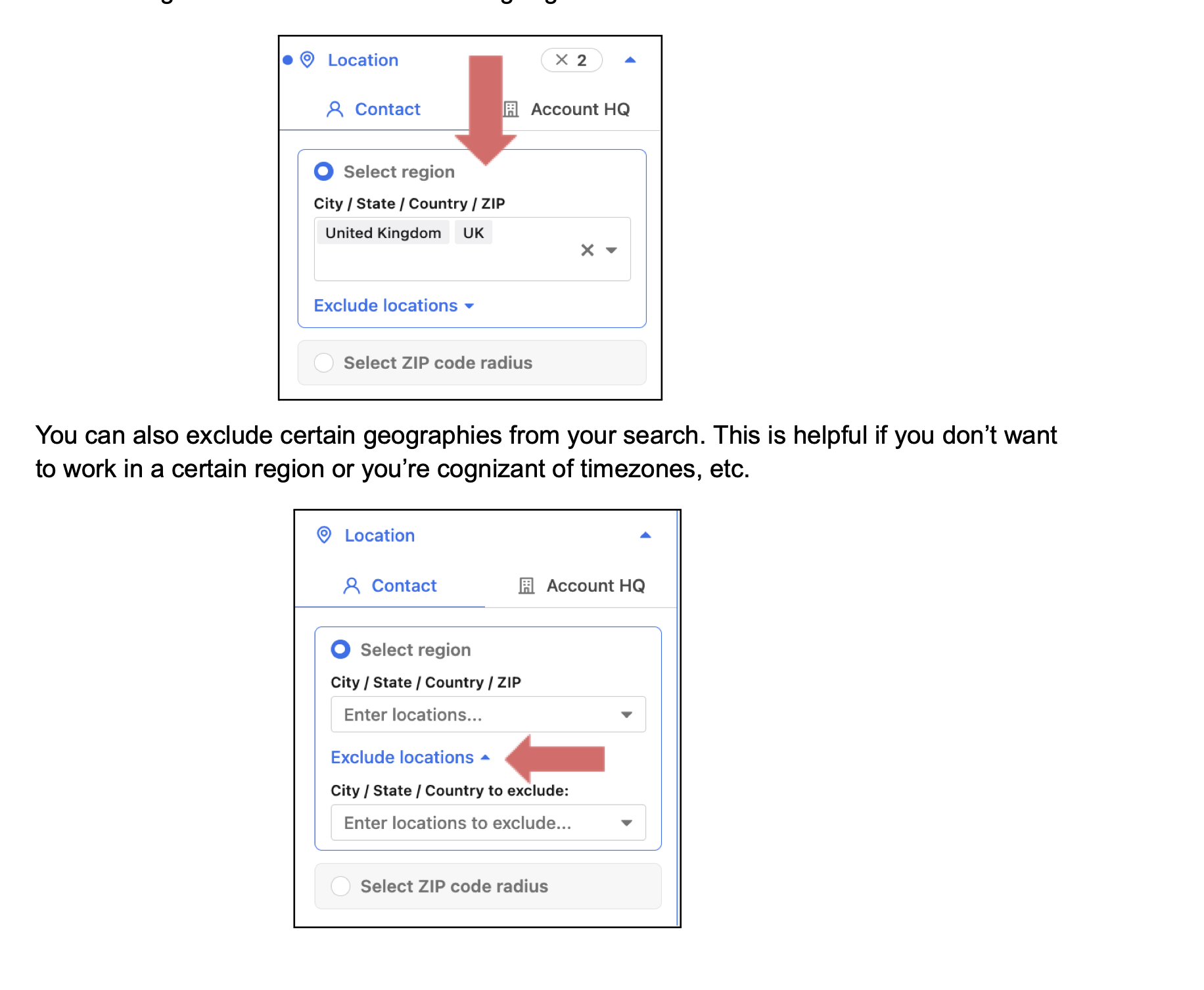
TIP: If you’re looking for where an account is headquartered, you can just toggle to the “Account HQ” and select your regions.
4. Use the # employees filter
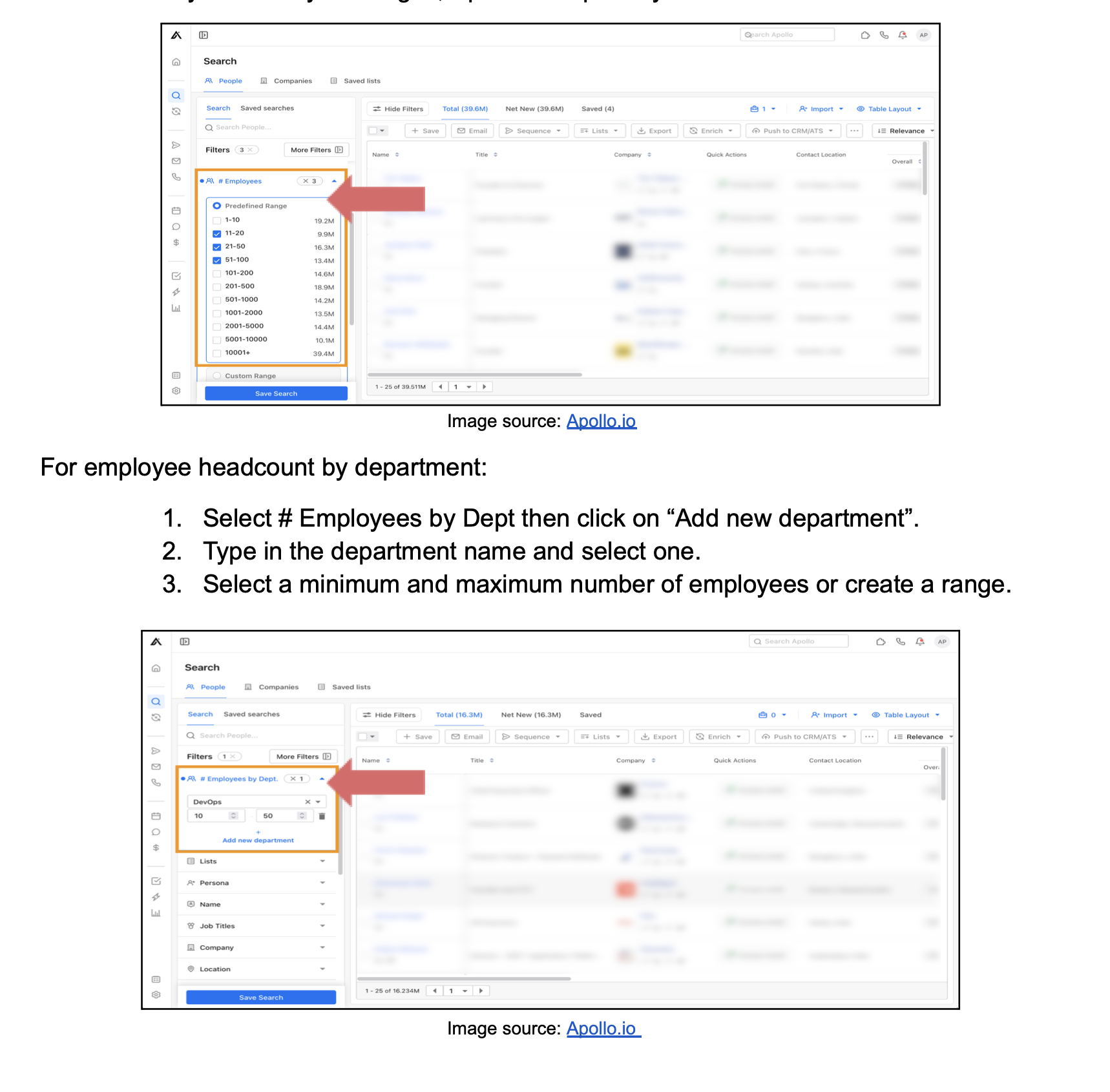
Apollo has two headcount filters: one for you to find the total company headcount and another to search by department.
That means you can reach out to companies based on whether they’re small, medium, or large organizations.
Here’s what to do for total headcount:
Select # of employees then choose from predefined ranges starting from 1 - 10 000 or more.
Once you select your ranges, Apollo will update your search results
5. Don’t skip keywords
When setting up your search in Apollo, it’s clear that you should select an industry to narrow down your search. Once you understand your ICP, you’ll know the industries that are likely to be interested in your offering.
Apart from selecting an industry, keywords in Apollo play a crucial role in enhancing your search results.
To search company keywords, you simply have to type them in the bar and press enter. You can include multiple keywords separated by a comma.
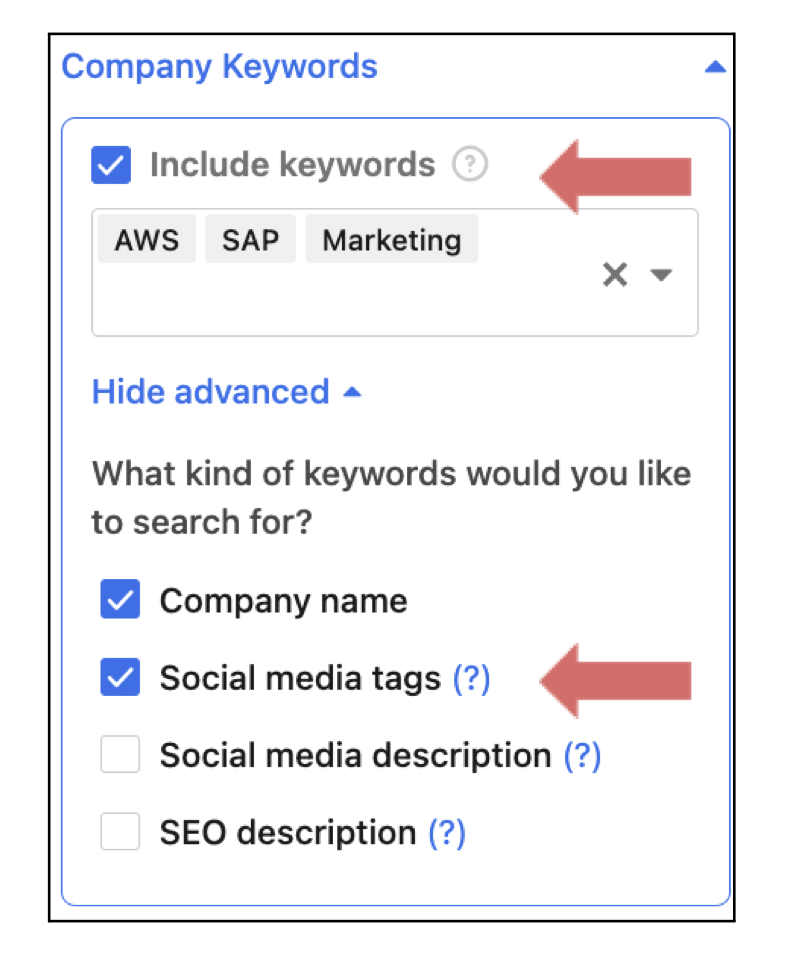
In advanced settings, Apollo allows you to choose keyword types such as company name, social media tags, social media description, and SEO description.