This guide will walk you through the process of reviewing your campaign, whether you approve it as-is or need changes made. By following the instructions below, you’ll ensure that your feedback is captured correctly.
Click “Approve” if you're happy with the campaign.
Once you click this, you'll be redirected to a white screen. Don't worry, this is not an error; the screen is firing a webhook that updates our system.
The campaign will then be automatically assigned to your Customer Success Manager in our project management system, and they will begin the process of launching your campaign.
If you'd like any adjustments made to the campaign:
Click “Deny.”
After clicking "Deny," you will also be redirected to a white screen. Again, this is not an error—it’s just firing a webhook in the background.
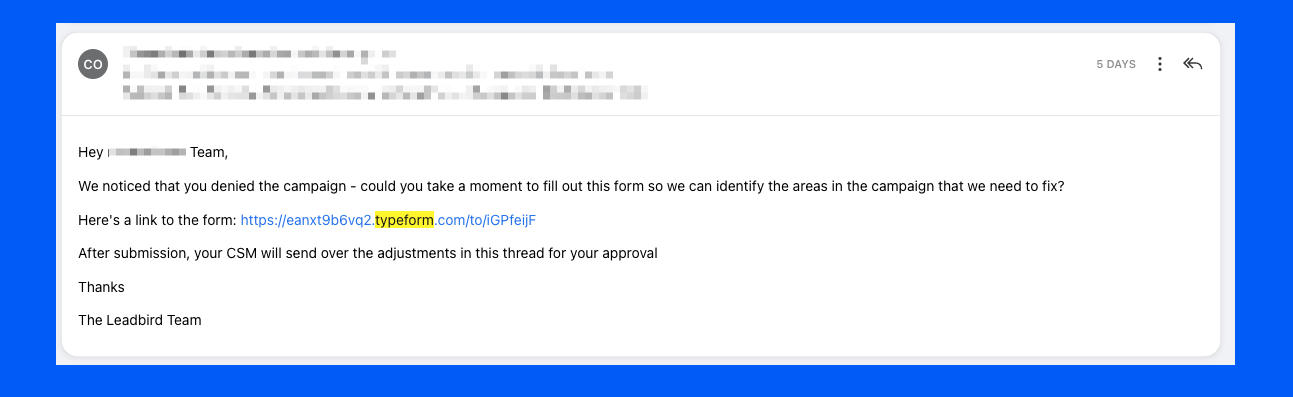
You will receive an email with a link to a Typeform in the same email thread.
Leave your feedback in the Typeform.
Provide all the details regarding the adjustments you'd like made.
Important: Please use the Typeform for all feedback. If you simply email your feedback instead, there’s a chance it could be missed by the senior team, which may delay the review process.
Once you submit your feedback in the Typeform, our team will begin working on the requested changes.
You’ll receive a follow-up email in the same thread, confirming that all areas of concern are being addressed.
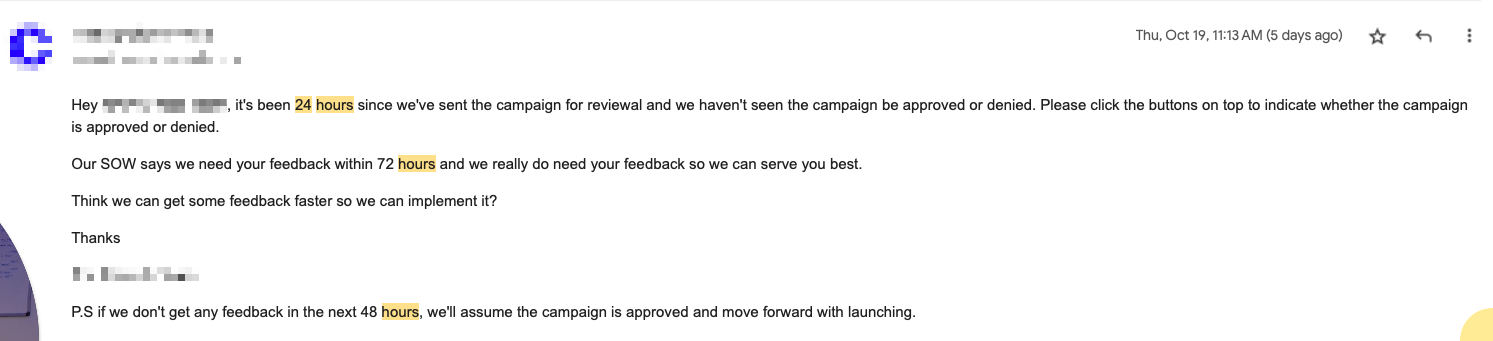
After 24 hours: We’ll send you a reminder email to bump the campaign review to the top of your inbox.
After 48 hours: We’ll send another reminder email.
After 72 hours: If we haven’t received your feedback by then, the campaign will be auto-approved and pushed into production.
If your campaign is auto-approved but you still want to make adjustments, don’t worry:
You can still provide feedback even after the campaign has been launched.
We’ll continue running the campaign as scheduled and will implement your requested changes once we’ve received your feedback.