Purpose:
This SOP explains how to use the LinkedIn Master Inbox to manage, track, and respond to LinkedIn InMail messages efficiently.
It covers how to organize leads, create custom labels, and integrate with tools like Slack or webhooks.
Video walkthrough - https://www.loom.com/share/b8aedbc53c6b4f8d8198cc310e1762ca
The LinkedIn Master Inbox is designed to help you:
Manage all LinkedIn responses in one place
Track interested and uninterested replies
Create CRM-style organization within the platform
Respond to leads directly from your inbox
Integrate with other tools for instant alerts and automation
This replaces the previous inbox system and provides a more intuitive, organized workflow.
When you log in, you’ll see your inbox dashboard containing all responses from your LinkedIn campaigns.
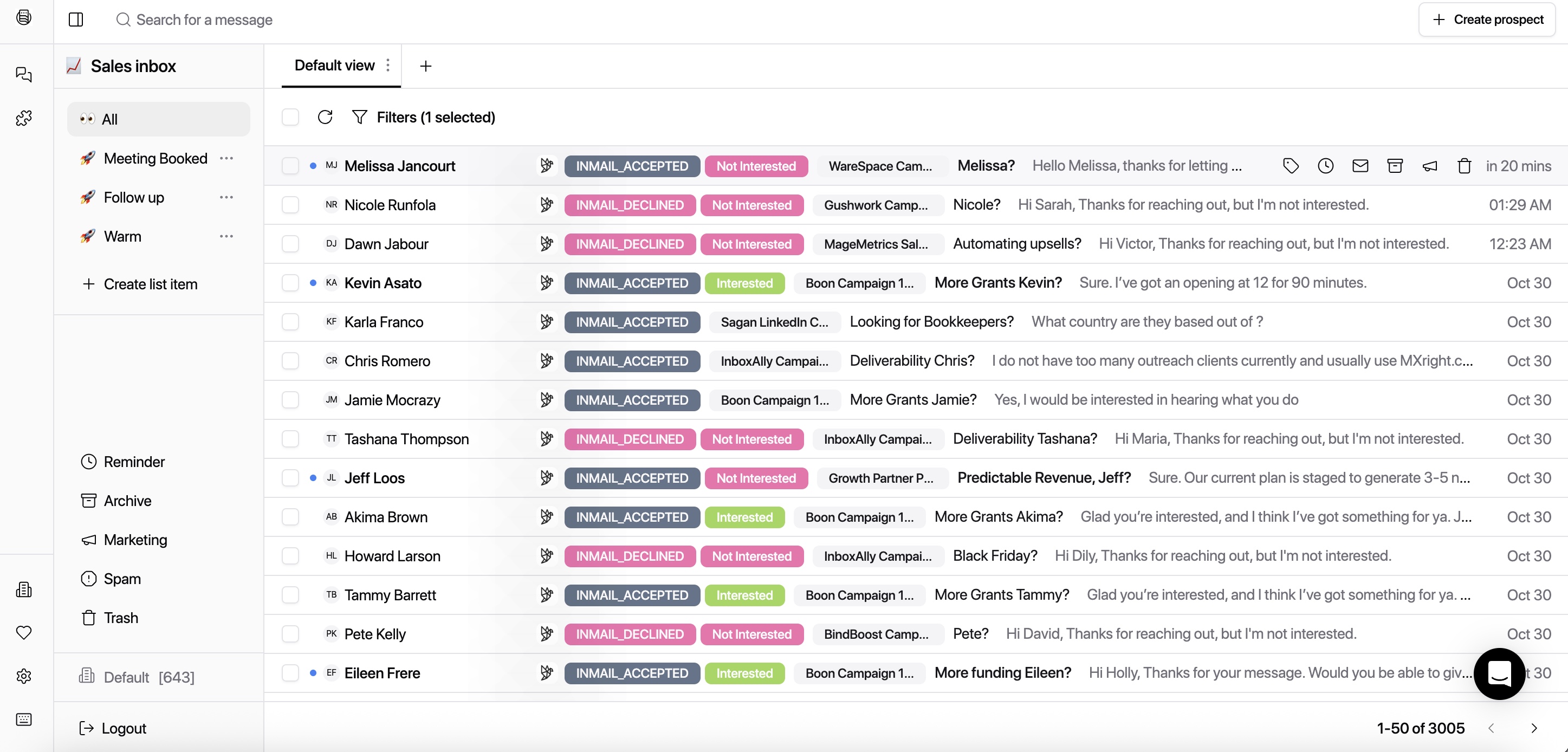
Each response is automatically categorized by labels for easy tracking.
Keep these four main labels visible:
Interested – The contact has responded positively to your message.
InMail Accepted – The contact has accepted your InMail but has not yet replied.
InMail Declined – The contact declined the InMail.
Not Interested – The contact responded but indicated no interest.
These labels allow you to quickly identify which leads need follow-up or can be archived.
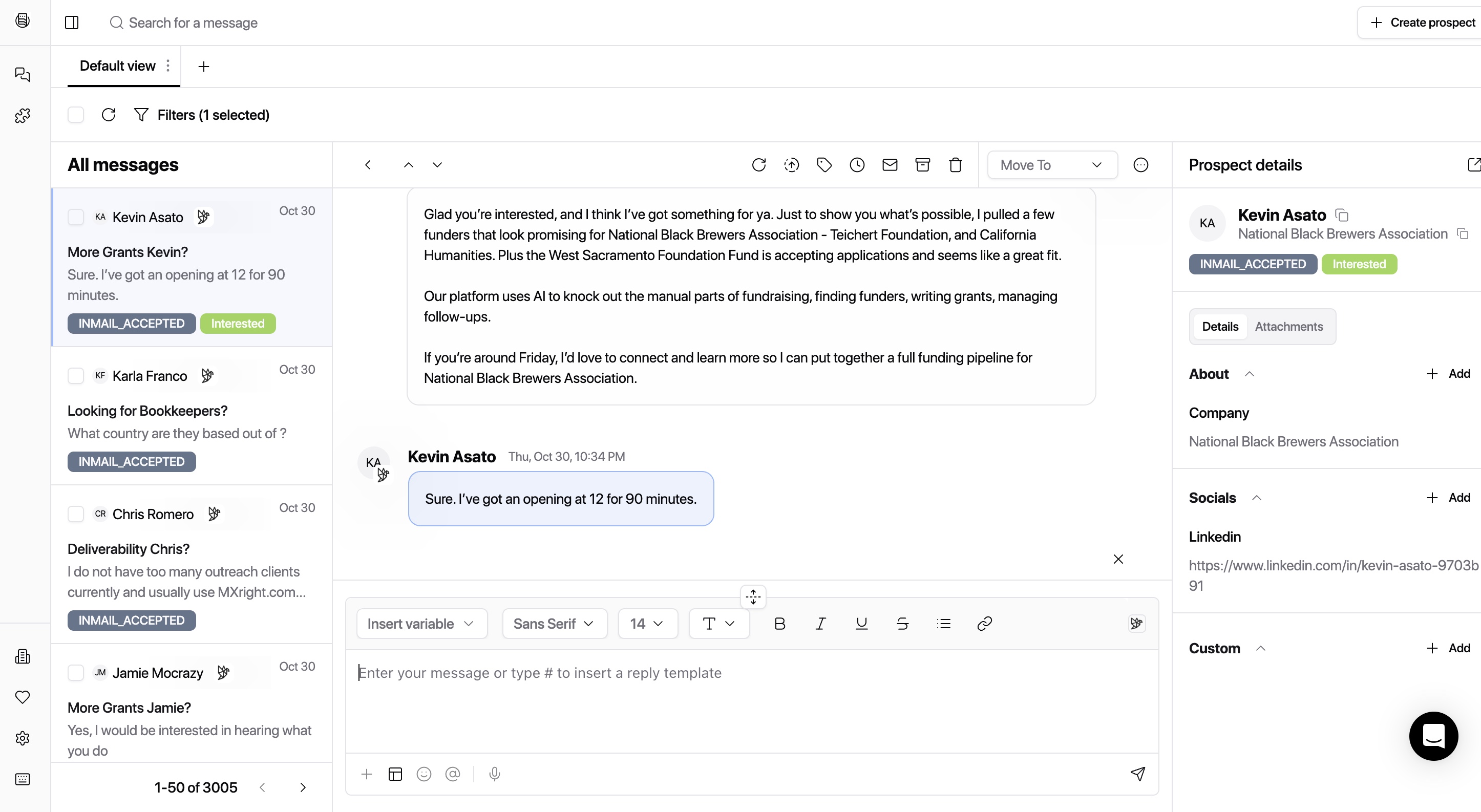
Click on any contact to open the conversation.
Review their message and respond directly within the inbox.
Use message variables (if available) to personalize responses.
You can view the contact’s company name and LinkedIn profile directly in the inbox for additional context.
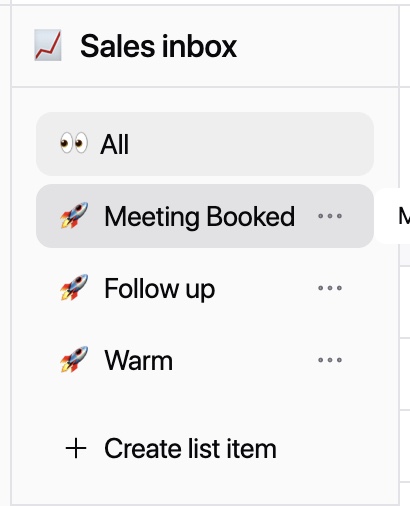
You can treat the Master Inbox like a lightweight CRM by organizing leads using custom labels and folders.
Meeting Booked: Leads who have scheduled a meeting.
Follow-Up: Leads that require a response later.
Warm Leads: Prospects showing interest but not yet booked.
Select the contact.
Choose Move to and select the relevant folder (e.g., “Meeting Booked”).
Alternatively, right-click and choose from quick actions:
Move to Marketing
Archive
Mark as Unread
Set Reminder
Add Label
Delete

Pro Tip: Archive “Not Interested” responses regularly to keep your inbox clean and focused on opportunities.
To create a new label:
Click on “Create Label” or “Add Item.”
Enter the label name (e.g., “Meeting Booked,” “Follow-Up,” “Warm”).
Save the label.
Apply it to leads as needed to keep your inbox organized.
The Master Inbox supports integrations to help automate follow-ups and notifications.
You can set up Slack alerts for specific actions, such as:
When someone responds with interest
When a meeting is booked
To connect Slack:
Navigate to Settings → Integrations.
Select Slack.
Authorize access and choose which notifications to receive.
Once connected, you’ll receive real-time pings in your Slack workspace whenever leads reply with interest.
If you use other tools or CRMs, you can integrate using webhooks.
Go to Settings → Webhooks.
Add a webhook URL.
Test the connection and save.
This allows leads and responses to sync directly with your internal systems.
Developers can connect through the API key for advanced custom workflows.
You can find your API key under Settings → API.
You can create routing rules to automatically forward responses or leads to specific emails or sales channels.
For example:
Route “Meeting Confirmed” messages directly to your sales inbox.
Send “Interested” replies to a CRM or designated follow-up channel.
Check your “Interested” tab daily. These are your highest-priority leads.
Archive unqualified leads weekly to keep your inbox organized.
Use “Warm” and “Follow-Up” labels to stay on top of ongoing conversations.
Integrate with Slack for real-time alerts and faster responses.
Treat Master Inbox like a CRM — use it to track deal stages without needing separate tools.
The LinkedIn Master Inbox helps streamline your lead management process by:
Centralizing all LinkedIn responses
Automating organization and follow-up
Integrating seamlessly with Slack, webhooks, and CRMs
Reducing manual tracking and improving response speed
By following this SOP, you’ll maintain a clean inbox, improve response times, and stay organized across all your LinkedIn outreach campaigns.